Activity Timeline
Activity Timeline gives you a clear, chronological breakdown of your PC's recent history. By securely reading Windows system logs and USN records, it maps out your daily usage footprint in one easy-to-read view. You can track exactly when your PC was powered on or off, see a history of USB flash drives plugged into your system, and review which files were created, modified, or deleted.
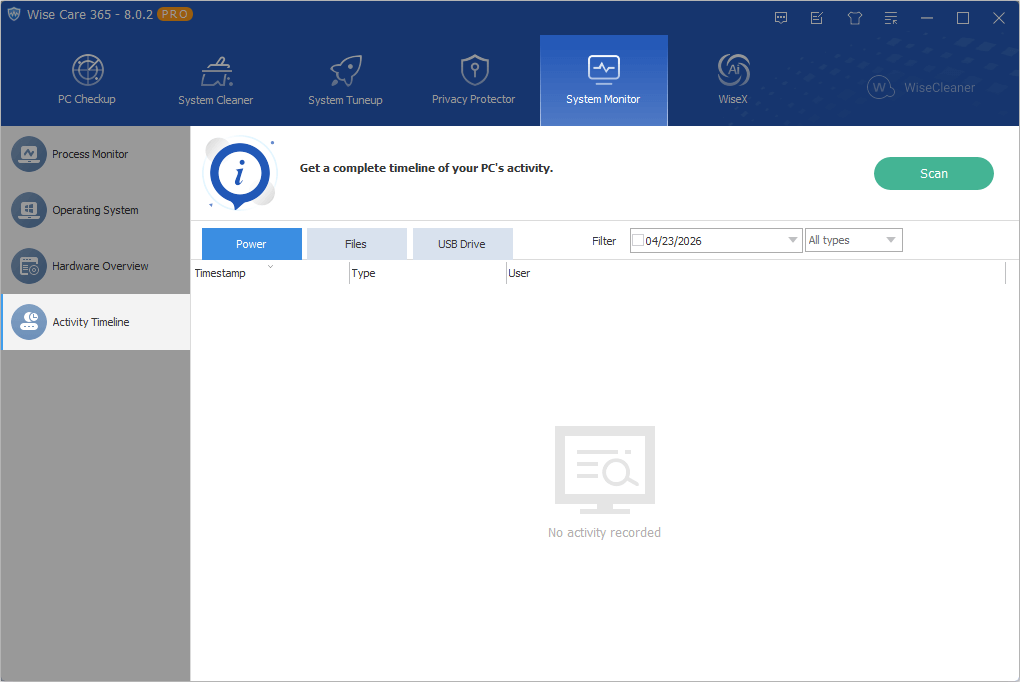
After scanning, you can view all the logs and clean them if needed to protect your privacy.
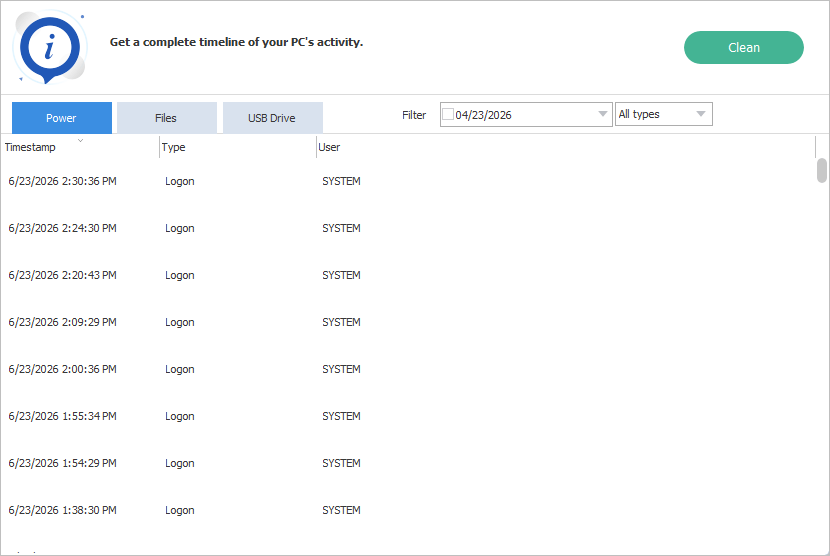
Power
It reads and displays power-related events from the Windows system logs, serving as a reference for system startup and shutdown events. It is safe to clear the power logs.
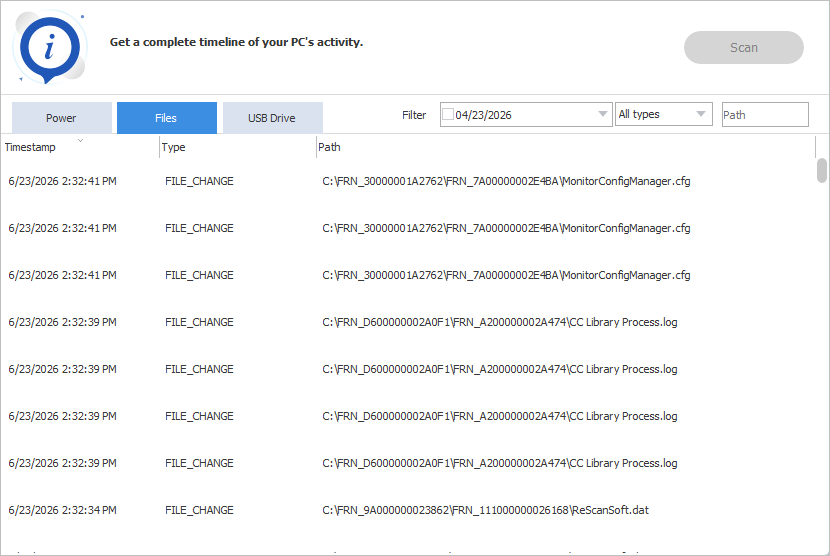
Files
In the Activity Timeline of Wise Care 365, the Files section is the most general-purpose log: it tracks file-level activity on your system, not just programs or devices.
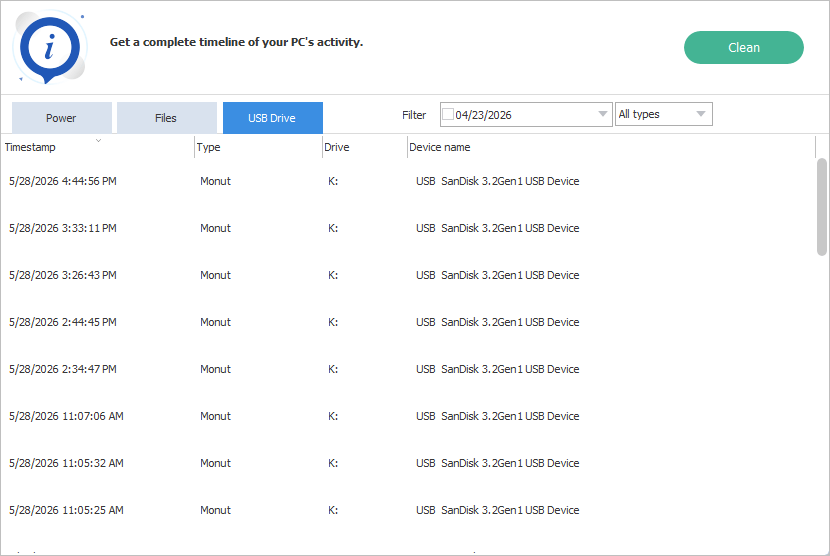
USB Drive
USB Drive tracks all activity related to external storage devices connected to your computer. It is safe to clear the logs.
Why Doesn't Wise Care 365 Clean the USN Journal?
Wise Care 365 intentionally skips the NTFS USN (Update Sequence Number) Journal to protect your system's performance. The USN Journal is a deep-level Windows ledger that tracks file changes. While it does contain a history of file activity, wiping it can break or severely slow down instant-search tools (like Everything) and cloud backup syncs (like OneDrive), forcing them to re-index your entire drive.
If you still wish to clear it for maximum privacy, you can do so manually:
Open Command Prompt as Administrator
Run the following command, replace c: with your target drive letter.
fsutil usn deletejournal /d c:
Note: This will immediately disable instant file-tracking features for that drive.